Prosperity Patient Portal
Clients can complete intake, consent, assessment or other forms prior to a visit using a mobile device or computer.
New Prosperity Patient Portal
You will receive a welcome email to the new portal during the week of your first appointment at River Valley. Our new system, ProsperityEHR, will make it easier for you to manage your care. Through the portal, you will be able to:
Complete and receive portal forms
View upcoming appointments
- Pay your balance
Telehealth Appointments
All telehealth appointments will be accessed through the new ProsperityEHR Patient Portal. Please note the following timeline and details:
- All telehealth appointments are now accessed through the ProsperityEHR Patient Portal.
- Each telehealth appointment will have a unique link specific to your appointment date and time.
- The link is only available on the day of your appointment.
- Depending on your browser, you may be prompted to allow “recording” during your telehealth session. This message is asking for permission to access your camera and microphone only. Prosperity and River Valley BHWC do not record any telehealth sessions.
If you have any questions or need assistance, please contact our team at 952-746-7664.
NOTE
For convenience, we recommend saving the portal link as a bookmark on your computer if you regularly attend telehealth appointments.
Step #1 - Welcome Email
Patient Portal Registration
A WELCOME EMAIL WILL AUTOMATICALLY BE SENT TO YOU WITH INSTRUCTIONS.
- A welcome email will automatically be sent inviting you to our Prosperity EHR Patient Portal.
- This email will be sent to you on or around the time you book your first appointment.
- From: ProsperityEHR Portal Support
- Subject: Access your Patient Portal
- Please follow the instructions within the email to activate your portal account.
- If you have not yet received this email, please contact our admin staff at 952-746-7664.
TIP • CHECK YOUR SPAM FOLDER
If you do not see the email in your inbox, please check your spam folder.
Step #2 - Create Your Account
LOGIN TO THE CLIENT PORTAL NAVIGATE TO THE FORMS SECTION.
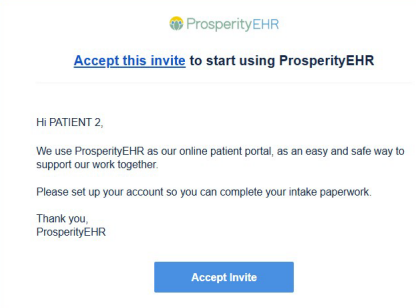
- Click > Accept Invite
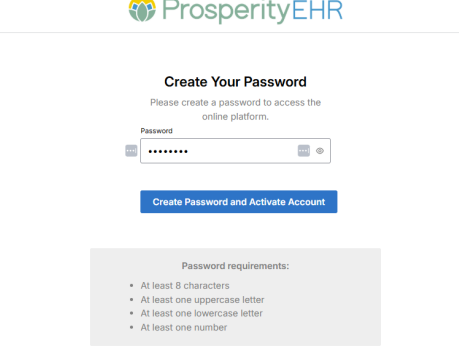
- Create a password (username is email address)
- Click on > Create Password and Activate Account
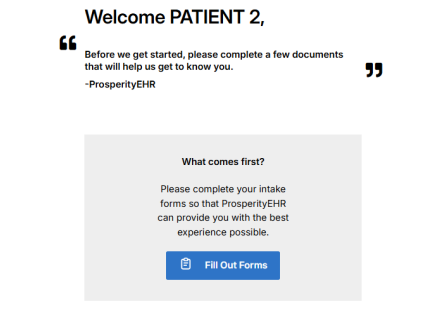
Step #3 - Fill Out All Forms Listed
FILL OUT THE FORMS.
- You are now logged in to the patient portal.
- The Patient Portal will allow you to sign forms, check upcoming appointments, and log into your telehealth appointments.
TIP • FILL OUT FORMS COMPLETELY
Fill out any form completely before submitting to avoid delay or cancellation of your appointment.
Step #4 - Provide a Card to Put On File
PROVIDE A CREDIT CARD PER OUR POLICY (REQUIRED)
- To finalize your scheduled intake at River Valley, please call 952-746-7664 and provide your credit card information to put on file.
- You can also request us to send you via email, a Credit Card Authorization Form to fill out.
- Once we receive the form back from you and enter your credit card information into our secured system, the document will be destroyed.
- Credit cards on file is a policy at River Valley and is a requirement to finalize your scheduled intake appointment.
How to Join a Telehealth Session
COMPLETE ANY INTAKE FORMS YOUR PROVIDER MAY HAVE SENT YOU.
- Log into the patient portal to fill out any intake forms before joining the telehealth appointment.
- If forms are required, you may be blocked from joining your video call until they have been submitted to your provider.
Step #1 - Complete All Forms
DOWNLOAD HIPPA COMPLIANT ZOOM FOR YOUR TELEHEALTH SESSION.
- You can download Zoom here if you haven’t already done so.
- This Zoom version is HIPPA compliant and secure.
Step #2 - Download Zoom
CLICK THE APPOINTMENT YOU WISH TO JOIN.
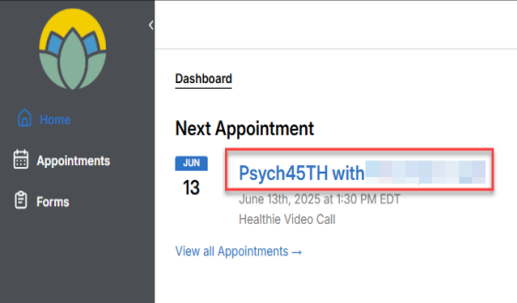
- Select your correct appointment date and time to open the side panel.
TIP • CONFIRM YOU HAVE A STRONG AND RELIABLE CONNECTION.
- To prevent the video from freezing or cutting out, please make sure you have a strong, stable internet connection before your visit.
Step #3 - Select the Appointment
CLICK THE ZOOM LINK AT THE BOTTOM AND JOIN THE CALL.
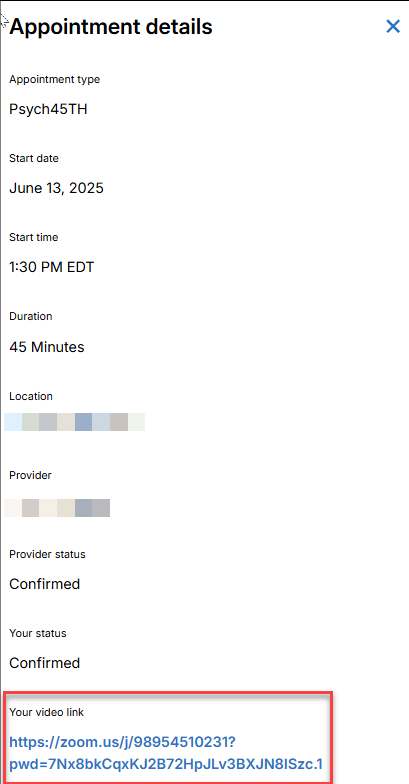
- Click the Zoom link at the bottom right hand corner of the side panel.
- The Zoom application will launch.
Step #4 - Click the Video Link
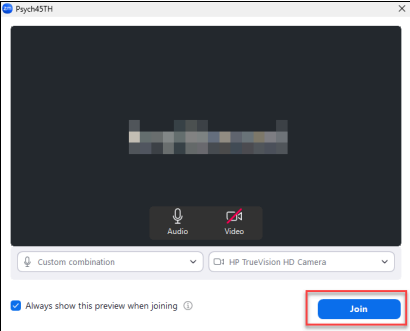
CLICK JOIN.
- Click Join.
- Use standard Zoom functionality to complete the telehealth session.